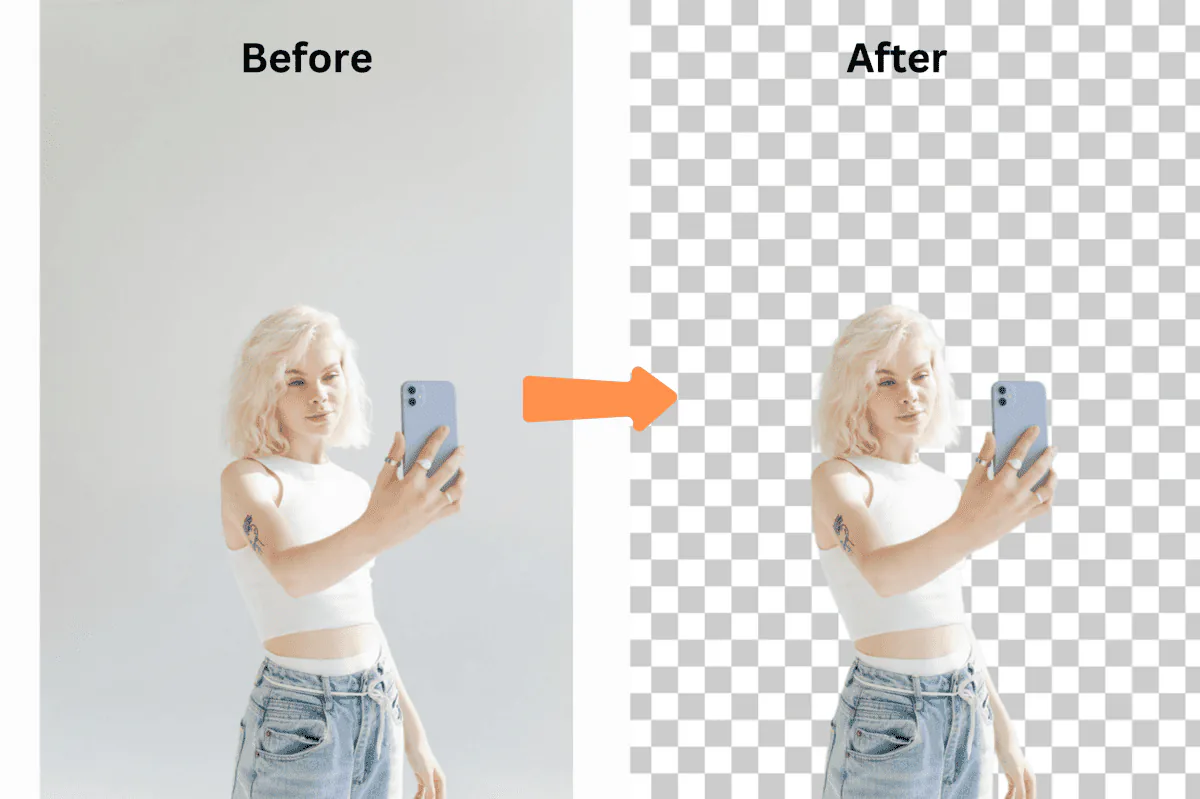


If you've ever spent an afternoon manually cutting out backgrounds from product photos one by one, you already know the problem. It's tedious, it's slow, and it doesn't scale. Whether you're running an e-commerce store on Amazon.ca, Shopify, or listing items on Kijiji, you need a faster way to process images.
Bulk background removal solves this. Instead of editing images individually, you upload a batch — 10, 50, even hundreds — and the tool processes them all at once. Same quality, fraction of the time.
This guide covers everything you need to know about bulk background removal: how it works, when to use it, what to watch out for, and how to get the best results.
What Is Bulk Background Removal?
Bulk background removal is the process of automatically removing backgrounds from multiple images simultaneously, rather than processing them one at a time.
The technology behind it is the same AI that powers single-image background removal — neural networks trained to distinguish foreground subjects (products, people, objects) from backgrounds. The difference is purely workflow: instead of uploading one image, waiting, downloading, and repeating, you upload a batch and get them all back at once.
Modern tools like remove-bg.io's Bulk Background Remover can handle up to 20 images per batch, processing them in parallel. For larger catalogues, you run multiple batches.
Who Needs Bulk Background Removal?
E-commerce Sellers
This is the most common use case by far. If you sell on Amazon.ca, Shopify, Etsy, eBay Canada, or any other marketplace, you need clean product photos with white or transparent backgrounds. Amazon Canada specifically requires a pure white background for main product images. When you're listing hundreds of products, doing this manually isn't realistic.
Real Estate Agents
Property listings need consistent, professional photos. Bulk processing helps when you're preparing multiple listing photos — removing distracting elements and creating clean, uniform backgrounds across all images in a listing.
Marketing Teams
Campaign assets, social media content, catalogue layouts — marketing teams regularly need to process batches of images for consistent branding. Being able to remove backgrounds from an entire photo shoot at once saves hours of design time.
Print-on-Demand Businesses
If you run a print-on-demand business through platforms like Printful or Redbubble, you're constantly preparing artwork and product mockups. Bulk background removal streamlines the process of isolating designs for placement on different products.
Photographers
Event photographers, school portrait photographers, and product photographers who shoot high volumes all benefit from batch processing. Rather than spending hours in Photoshop, they can process entire shoots in minutes.
The Cost of Manual Background Removal
Let's talk numbers. Understanding the real cost helps justify the switch to bulk processing.
Manual editing in Photoshop:
- A skilled editor takes 3-8 minutes per image (simple products) or 10-20 minutes (complex items like jewellery or clothing with fine edges)
- At an average of 5 minutes per image, processing 100 images takes about 8 hours
- At a freelancer rate of $30-50 CAD/hour, that's $240-400 for 100 images
- For a catalogue of 1,000 products with 5 images each, you're looking at $12,000-20,000 CAD
Outsourcing to editing services:
- Services typically charge $0.50-3.00 CAD per image
- 1,000 images = $500-3,000 CAD
- Turnaround time: 24-48 hours typical, longer for complex images
- Quality varies between editors, requiring review and revisions
Bulk background removal with AI:
- Processing time: seconds per image
- 100 images: a few minutes total
- 1,000 images: under an hour including upload/download time
- Cost with remove-bg.io: free for standard quality, with HD downloads available
- Quality: consistent across all images — no variation between editors
The savings compound over time. A mid-size e-commerce operation processing 500 new product images per month saves thousands of dollars annually by switching to bulk AI processing.
How to Use remove-bg.io's Bulk Background Remover
Here's the step-by-step process:
1. Prepare your images. Gather all the photos you need to process. Supported formats include PNG, JPG, JPEG, and WebP. There's no file size limit per image, which matters when you're working with high-resolution product photography.
2. Navigate to the Bulk Background Remover. You'll see the batch upload interface. No account required, no sign-up process.
3. Upload your batch. Drag and drop up to 20 images at once, or click to select files. The tool processes them in parallel — you'll see progress indicators for each image.
4. Review results. Each processed image appears with its background removed. You can review them individually and make adjustments if needed — switching to the single-image editor for fine-tuning specific photos.
5. Download. Download all processed images at once as a ZIP file, or download individual images. HD quality is available for all downloads.
For catalogues larger than 20 images, simply run additional batches. The process is fast enough that processing hundreds of images takes minutes, not hours.
Tips for Getting the Best Bulk Results
Start with Good Source Photos
AI background removal works best when there's clear contrast between the subject and the background. A few tips for source photos:
- Consistent lighting reduces colour casts and shadows that can confuse the AI
- Plain backgrounds (even roughly plain) produce cleaner edges than extremely busy scenes
- Full subject in frame — make sure your product or subject isn't cropped at the edges
- Good resolution gives the AI more detail to work with for accurate edge detection
Organise by Category
Process similar images together. Products shot in similar conditions tend to produce consistent results, making batch review faster. Group your t-shirts separately from your jewellery, your furniture separately from your accessories.
Use Consistent Naming
Before uploading, name your files systematically (e.g., product-001-front.jpg, product-001-side.jpg). The download preserves original filenames, so consistent naming makes it easy to match processed images back to product listings.
Review Before Publishing
Even the best AI occasionally struggles with particularly tricky edges — fine hair, transparent objects like wine glasses, or products that closely match their background colour. A quick visual review of each batch catches these edge cases before they go live.
Consider Your Final Background
While transparent backgrounds (PNG) are the most versatile, you might want to add a specific background colour after removal. White is standard for most Canadian marketplaces (Amazon.ca, Walmart Canada), but some uses call for coloured backgrounds. You can use the Change Background Colour tool to apply consistent colours across all your images.
Bulk Processing for Different Industries
Fashion and Apparel
Fashion photography is one of the trickiest categories for background removal due to fine edges — lace, fur, flowing fabric. For flat-lay product photos, AI handles these well. For on-model shots, the results are good but may need occasional touch-ups around hair edges.
Pro tip: Shoot clothing on a consistent coloured background (light grey works well) to maximise AI accuracy. Avoid backgrounds that match the clothing colour.
Electronics and Gadgets
Hard-edged products like phones, laptops, and accessories are ideal for bulk background removal. The clean, defined edges produce excellent results consistently. Reflective surfaces can occasionally cause issues — matte finishes process better than glossy ones.
Food and Beverage
Food photography with background removal is growing in popularity for delivery platforms and menu design. The key challenge is steam, splashes, and garnishes that extend into the background. Tight, well-composed food shots process well in bulk.
Jewellery
Fine details and small products make jewellery one of the more challenging categories. Chains, gemstone edges, and metallic reflections all add complexity. For high-value items, you may want to review bulk-processed images more carefully and use the single-image editor for fine-tuning.
Home and Garden
Furniture and home decor items generally process well due to their defined shapes. The main challenge is large items with complex silhouettes (open shelving, wire furniture) or transparent elements (glass tables).
Workflow Integration
Shopify
Shopify sellers can bulk-process images and upload them directly to their product catalogue. Process all variant images at once — colour options, angles, detail shots — then upload to Shopify's media library. Shopify's image requirements work perfectly with the PNG or white-background outputs from bulk processing.
Amazon.ca
Amazon Canada's image requirements are strict: main images must have a pure white background (RGB 255, 255, 255). Bulk background removal followed by a white background application ensures compliance across your entire catalogue without manual editing.
Etsy
Etsy is more flexible with backgrounds, but clean product photos consistently outperform cluttered ones in search results and click-through rates. Bulk processing lets you maintain a cohesive shop aesthetic across all your listings.
WordPress / WooCommerce
If you run a WooCommerce store, bulk-processed images can be uploaded directly to your WordPress media library. Consider processing images at your theme's recommended dimensions to avoid additional resizing.
Advanced Batch Workflow Tips
Processing Large Catalogues (1,000+ images)
For very large catalogues, break your processing into manageable sessions:
- Organise first. Sort images into folders by product category
- Process in batches of 20. Upload, process, download, repeat
- Review in batches. Check each batch before moving to the next
- Track progress. Use a simple spreadsheet to mark which batches are complete
- Handle exceptions separately. Set aside images that need manual touch-ups and process them individually using the Background Remover
Maintaining Quality at Scale
Quality control matters more as volume increases. A few strategies:
- Spot-check every batch — review 3-4 images per batch of 20
- Flag and fix — rather than re-processing entire batches, use the single-image editor for individual corrections
- Create a style guide — document your background preferences, export settings, and quality standards so the process is consistent even when different team members handle it
Seasonal Catalogue Updates
Canadian e-commerce businesses often update catalogues seasonally. Bulk processing makes seasonal refreshes manageable:
- Spring/Summer updates: Process new product photos, re-process existing ones with updated backgrounds
- Holiday season: Handle the influx of new products and gift bundles efficiently
- Back to school: Update entire product lines quickly for the September rush
Common Issues and Solutions
Inconsistent Edges
If some images in a batch have rougher edges than others, it's usually due to variations in the source photos. Low contrast between subject and background, motion blur, or very small subjects in large frames all reduce edge quality.
Solution: Re-shoot problem images with better contrast, or process them individually with the single-image editor where you can fine-tune the result.
Colour Fringing
Occasionally, background colours can "bleed" into the edges of the subject, leaving a faint colour halo. This is most noticeable when a brightly coloured background was used in the original photo.
Solution: Shoot against neutral backgrounds (white, grey) to minimise colour contamination. For existing images, the editor's refinement tools can clean up fringing.
Processing Speed
Large batches of very high-resolution images take longer to process. If speed is critical, consider whether you need full-resolution processing for all images, or if some can be downsized first.
Solution: For web use (Amazon.ca, Shopify), images of 2000x2000 pixels are more than sufficient. Resize before processing to speed up batch operations.
Transparent vs. Semi-Transparent Objects
Glass, plastic wrap, sheer fabric, and water are inherently challenging for background removal because the AI needs to distinguish between "transparent object" and "no object."
Solution: Accept that these items may need individual attention. Process them in the bulk batch, review the results, and use the single-image editor for any that need correction.
Comparing Bulk Background Removal Tools
Not all bulk background removal tools are equal. Here's what to look for:
Batch Size
Some tools limit you to 5 or 10 images per batch. remove-bg.io handles 20, which significantly reduces the number of batches you need to run.
Quality Consistency
The AI model matters. Cheaper tools often use lower-quality models that produce inconsistent results across a batch. Look for tools that use the same high-quality processing for bulk as they do for single images.
Output Options
Can you download as a ZIP? Choose between PNG and JPG? Apply a background colour to all images at once? These workflow features save significant time at scale.
Cost
Many "bulk" tools charge per image — $0.10 to $1.00 per image adds up fast with large catalogues. remove-bg.io's bulk processing is free, which makes it particularly valuable for small businesses and individual sellers across Canada.
No Account Required
Some tools require paid accounts before you can access bulk features. remove-bg.io's bulk processor works without any sign-up — useful when you need to process images quickly without committing to a subscription.
The Bottom Line
Bulk background removal has shifted from a luxury to a necessity for anyone processing more than a handful of images regularly. The technology is mature enough to deliver consistent, high-quality results at scale, and the time savings are substantial.
For Canadian e-commerce sellers, marketers, and photographers, the workflow is straightforward: shoot your photos, batch-process them through the Bulk Background Remover, review, and publish. What used to take days now takes minutes.
The key to success is treating bulk processing as part of your production pipeline, not an afterthought. Shoot with background removal in mind (consistent lighting, reasonable contrast, full subjects in frame), organise your files systematically, and review each batch before publishing.
Whether you're listing 10 products on Kijiji or managing a 10,000-SKU catalogue on Shopify, bulk background removal saves you time, money, and the tedium of repetitive manual editing.